
Pontus Karlsson
When to Upscale a Product Photo (and When Not To)
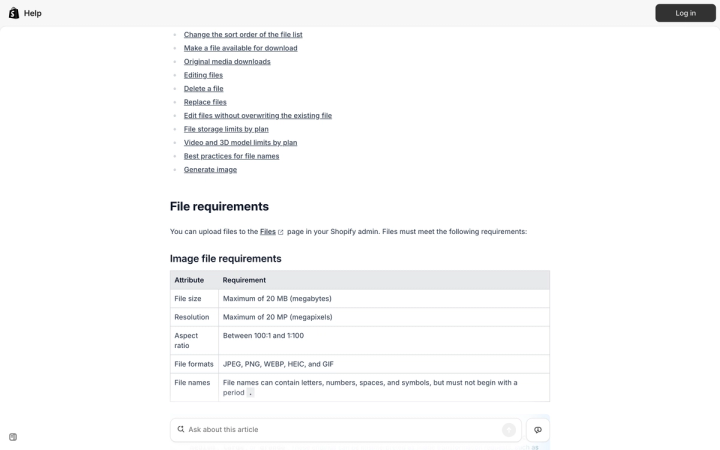
Upscale a product photo when the detail is genuinely there and you need more pixels to meet a platform spec. Do not upscale to fake detail that was never captured. Amazon states the rule directly in its Product image guide: "Do not artificially enlarge small images." Its floor is 500 pixels on the longest side, zoom switches on at 1,000, and Shopify recommends 2,048 × 2,048 for square images.
That leaves a real gap. A supplier sends you a 700-pixel JPEG. It uploads to Amazon fine, but it will not zoom, and Amazon has told you not to enlarge it. So what do you actually do?
What resolution do product photos actually need?
Two platforms, checked live on 25 August 2026, and the numbers are not the same.
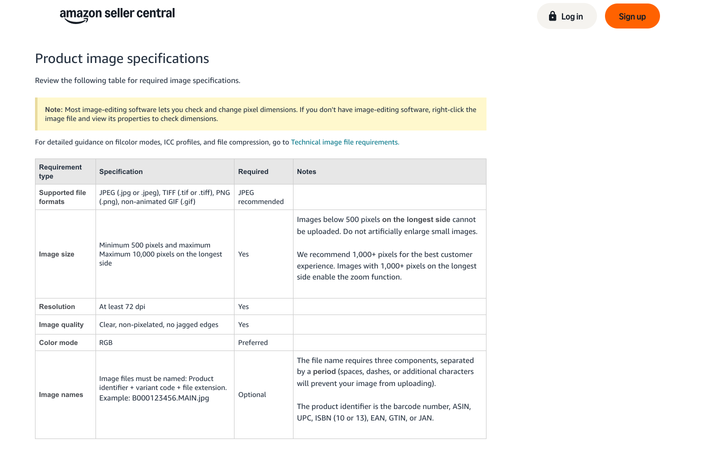
Amazon: minimum 500 pixels on the longest side, and images below that "cannot be uploaded." Maximum 10,000 pixels. "We recommend 1,000+ pixels for the best customer experience. Images with 1,000+ pixels on the longest side enable the zoom function." Resolution at least 72 dpi. Image quality must be "Clear, non-pixelated, no jagged edges."
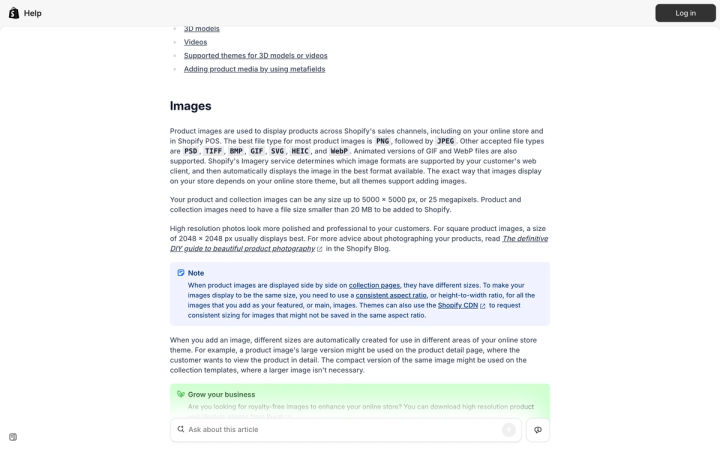
Shopify: product and collection images "can be any size up to 5000 × 5000 px, or 25 megapixels," with a file size under 20 MB. "For square product images, a size of 2048 × 2048 px usually displays best."
One wrinkle if you use the Files section of the Shopify admin rather than the product editor: that upload path documents a maximum of 20 MP, not 25, along with a 20 MB file-size cap and an aspect-ratio range of 100:1 to 1:100. Two upload paths, two different ceilings. Build to the lower one and you never have to think about which you used.
The 72 dpi line matters because of a myth attached to it. DPI is a print instruction. It has no effect on how an image displays on a web page — a 2,000 × 2,000 image at 72 dpi and the same file tagged 300 dpi are pixel-for-pixel identical on screen. Pixel dimensions are the only number that matters here. If someone asks you for "300 dpi web images," they mean big ones.
Here is the decision table, built from those two specs.
| Your source file | On Amazon | On Shopify | What to do |
|---|---|---|---|
| Under 500 px | Cannot be uploaded | Accepted but looks poor | Reshoot or regenerate — upscaling cannot rescue this |
| 500–999 px | Uploads, no zoom | Below recommended | Upscale only if detail is genuinely present |
| 1,000–2,047 px | Zoom enabled | Below the 2,048 sweet spot | Usually fine as-is; upscale for Shopify if clean |
| 2,048–5,000 px | Ideal | Ideal | Do nothing |
| Over 5,000 px | Fine up to 10,000 px | Over Shopify's limit | Downscale for Shopify |
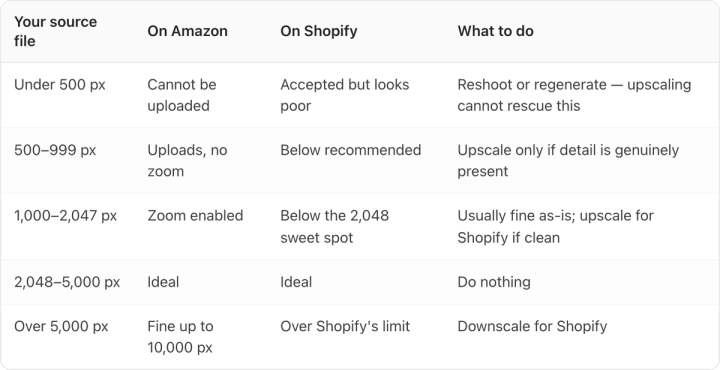
Most catalog problems live in row two.
Why does Amazon say "do not artificially enlarge small images"?
Because enlargement and detail are different things, and only one of them can be added after the fact.
Classic interpolation — the "resize to 200%" in any image editor — takes the pixels you have and spreads them over a bigger grid, guessing the in-between values by averaging neighbours. You end up with four times the file size and exactly the same amount of information, now blurrier. Amazon's "clear, non-pixelated, no jagged edges" requirement is what catches this: a naively enlarged image reads soft at full size, and zoom makes it worse by showing the customer more of the softness.
Amazon's instruction was written for that. It is a rule against faking a spec you do not meet.
Modern machine-learning upscalers work differently. Rather than averaging, they reconstruct plausible detail from what they learned about how real photographs look. On a genuinely sharp 800-pixel capture, a good model produces a 2,400-pixel file that looks like it was shot that way. That is not what Amazon's sentence was aimed at.
But it introduces a failure mode interpolation never had. A blurry upscale looks blurry, so you know not to trust it. A reconstructed upscale looks sharp whether or not it is right.
When is upscaling the right call?
Four conditions, all of which need to be true:
- The source is in focus. Upscaling amplifies whatever is there. Motion blur and missed focus get amplified too, and reconstruction turns soft edges into crisp wrong edges.
- The detail exists at the source resolution. Open the file at 100%. If you can read the ingredient panel, an upscaler has something to work from. If it is already mush, there is nothing to reconstruct and the model will invent.
- The compression is clean. A file that has been through several JPEG saves carries blocking artifacts. Upscalers happily reconstruct those into permanent texture.
- You are crossing a threshold that matters. Going 900 → 1,100 px to turn on Amazon zoom is worth it. Going 2,400 → 4,000 px because bigger sounds better is not.
The honest volume case is a catalog you did not shoot. Inherited SKUs, an acquired brand, a supplier who only ever sent web-sized files. When reshooting 400 products is not happening this quarter, careful upscaling on the ones that pass the four tests is a reasonable stopgap. We wrote separately about handling product photography at catalog scale.
When should you reshoot or regenerate instead?
When the label is the problem.
This is the specific way upscaling fails on consumer packaged goods, and it is worse than it looks in a thumbnail. Reconstruction models are excellent on organic texture: fabric weave, wood grain, condensation on glass. They are unreliable on small text, because text is not texture. There is exactly one correct answer for what the ingredient panel says, and a model that has learned "letter-shaped marks go here" will produce letter-shaped marks that are not your letters.
Zoom in on an upscaled supplement bottle and you will often find a nutrition panel that reads as text at a glance and dissolves into nonsense at 100%. The type is sharp. The words are wrong.
That is a compliance problem before it is an aesthetic one. A product image that misstates what is on the pack is a misrepresentation, whatever produced it. Our guide to product label text legibility covers the test in more depth, but the short version is: open the output at 100% and read every word on the pack against the physical product.
If the label fails, no amount of resolution fixes it. Reshoot the hero angle, or regenerate from a source that has the real packaging in it.
Dedicated upscaling tools are worth knowing if this is a recurring job, and we reviewed one of the main ones in our Topaz Labs review. But the tool choice matters much less than the decision of what to feed it.
How do you avoid destroying the file after you upscale it?
You can do everything right and lose the quality on export. Amazon publishes the rules for this on its Technical image file requirements page, and they are stricter than most people's habits.
"Submit images with minimal or no compression. For JPEG files, save at the highest possible quality level." It also warns: "Avoid saving multiple times in JPEG format during editing, as each save reduces image quality."
JPEG is lossy every single time. Open, crop, save. Open again, adjust levels, save. Four rounds later you have visible blocking around the label edges that no upscaler will fix — it will reconstruct it as detail.
The working practice:
- Keep a lossless master. PNG or TIFF, and for TIFF, Amazon says "do not apply any file compression."
- Do all your edits against the master, and export to JPEG once, at the end.
- Upscale before you compress, never after.
- "Remove all layers from images before you submit."
- Export RGB. Amazon prefers it and Shopify's pipeline expects it. Colour behaviour across platforms is its own topic, covered in our post on product photo colour accuracy.
Size your export to the platform, too. Sending a 9,000-pixel file to Shopify fails outright above 5,000 px, and sending an 18 MB JPEG anywhere is just slow.
Where does AI generation fit?
If you are regenerating rather than rescuing, resolution stops being the constraint and fidelity becomes it. A generated image can come out at whatever dimensions you ask for, so the 500/1,000/2,048 thresholds solve themselves. What does not solve itself is whether the packaging in the frame is your packaging.
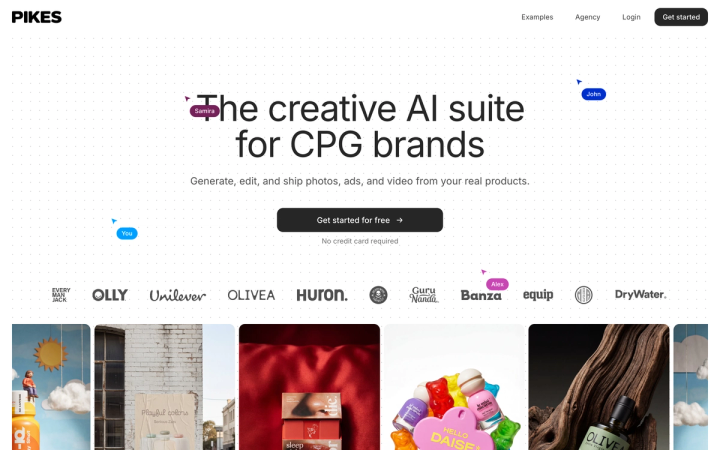
That is the problem we built Pikes AI to handle — generating from a brand's real SKUs so the label in the output is the label on the shelf, rather than a model's impression of it. It is the same test as the upscaling one, applied earlier in the process.
Whatever you use, run the check yourself before it goes live: export at the size the platform actually wants, open it at 100%, and read the pack. If the words are right and the edges are clean, ship it. If not, the pixel count was never the issue.
For the full spec sheet across marketplaces, see our product image requirements guide.
FAQ
What is the minimum resolution for an Amazon product image? 500 pixels on the longest side. Images below that cannot be uploaded. Amazon recommends 1,000+ pixels, which is also the threshold that enables the zoom function on the listing.
Does upscaling a product photo violate Amazon's rules? Amazon says "Do not artificially enlarge small images," and requires images to be "clear, non-pixelated, no jagged edges." A crude enlargement that produces a soft image fails that quality bar. An upscale of a sharp source that still reads clean at full size does not.
Do product photos need to be 300 dpi? No. Amazon's stated requirement is at least 72 dpi. DPI is a print-sizing tag and has no effect on web display — pixel dimensions are what determine how an image looks online.
What size should Shopify product images be? Shopify recommends 2,048 × 2,048 px for square product images, accepts up to 5,000 × 5,000 px or 25 megapixels, and requires a file size under 20 MB.
Can AI upscaling read a blurry label correctly? No. Reconstruction models produce plausible detail, not correct detail, and small text is where that distinction bites. If the label is unreadable in the source, an upscaler will generate letter-shaped marks that are not your text. Check every upscaled label at 100% against the physical pack.
Should I upscale before or after editing? Upscale early, against a lossless master, and export to JPEG once at the end. Amazon warns that "each save reduces image quality" in JPEG, and upscaling a file that already carries compression artifacts reconstructs those artifacts as permanent detail.
Create your next product image set
Use your product photos and brand context to create studio-style and lifestyle variations in Pikes.
AI product photography with PikesCompare plans and generation credits